

Qatch ondersteuningscentrum
Hier vindt u onze productdocumentatie en standaard werkprocedures.
Drivers
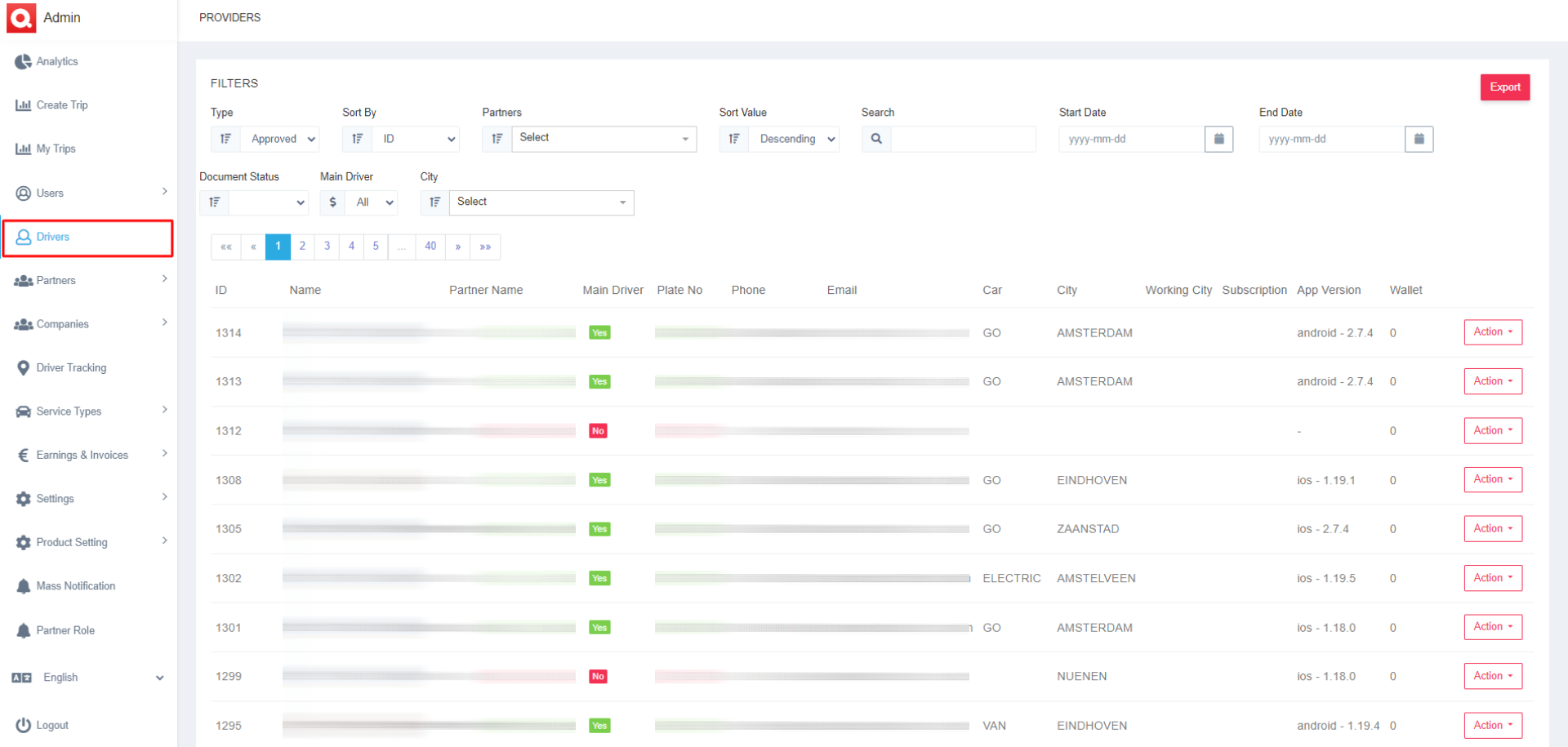
- The Drivers tab is under the User section in the admin panel sidebar.
- All the details of the drivers can be viewed and modified here in this section.
- A few relevant Filters are available to help you find the desired results.
- Type- View the Online, Approved, or Blocked Drivers.
- Sort By- You can see the drivers sorted list by ID or User Name.
- Partners- Select a particular partner to view their drivers.
- Sort Value- You can order the list Ascending or Descending depending on your needs.
- Search- You can search for the particular driver by any of their detail, placing it here in the search box.
- Start Date and End Date- If you enter the start and end dates, you can view the list during that period.
- Document Status- Admin can view the Approved and Rejected documents of the driver in this list.
- Main Driver- Here, if you click on Yes, you can see all the partners as a driver list, and if you click on No, then the sub-driver list will appear.
- City – The admin can select the city to see a particular driver list from that city.
- The list of drivers will emerge once you have applied all these desired filters.
- The list includes details of the drivers, like,
- ID- Unique ID of the driver
- Name- Driver’s name
- Partner Name- Name of the belonging partner of the driver
- Main Driver- Yes If the driver is the partner also and No if he is a sub-driver
- Plate No- Driver’s car plate number
- Phone- The phone number of the driver
- Email- The email address of the driver
- Car- Car type of the driver
- City- Residential city of the driver
- Working City- City where the driver works
- App Version- The version of the App which the driver is using
- Wallet- Total amount of money the driver has in his Qatch wallet
- In the details of every driver, there is an Action button at the end. There are six more options available when you click that button.
- Those options are,
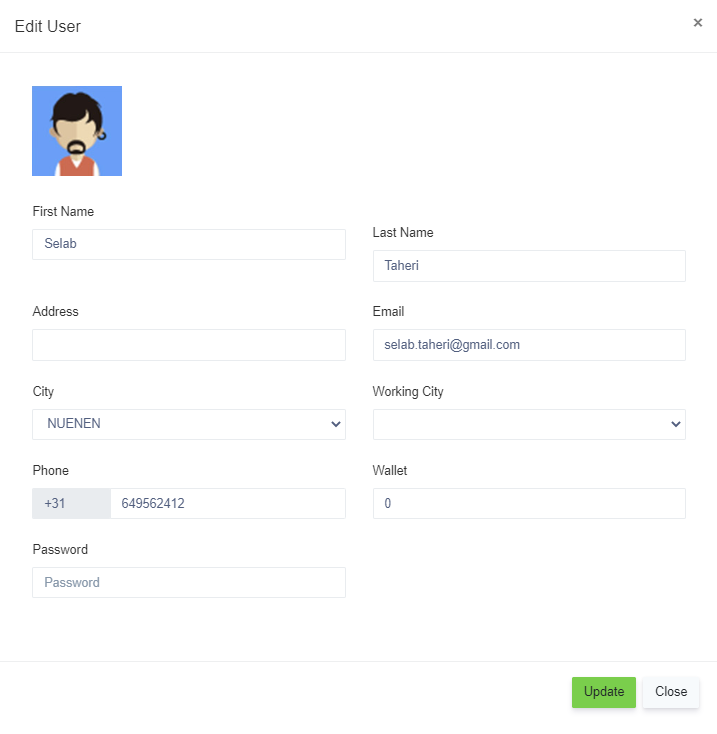
- Edit- The admin can change the details of the drivers, like First Name, Last Name, Address, Email, City, Password, Phone, Wallet, and Subscription.
2. History- Can view and verify the history of the trips of the drivers
3.Decline- The admin can decline the drivers from using the platform and then approve them, too, if needed.
4.Delete- The admin can delete driver details forever
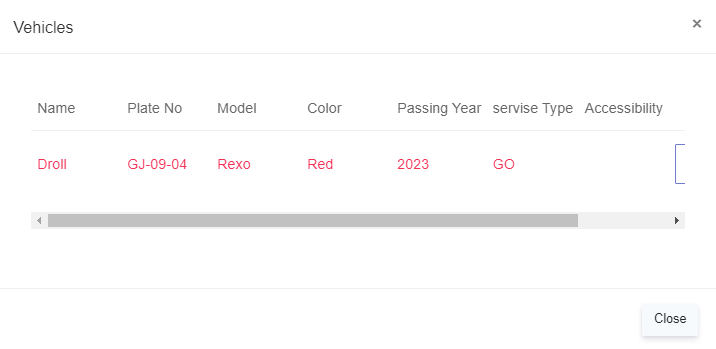
5.Assign vehicle- Admin can see the detail of the vehicle assigned to the driver along with their document
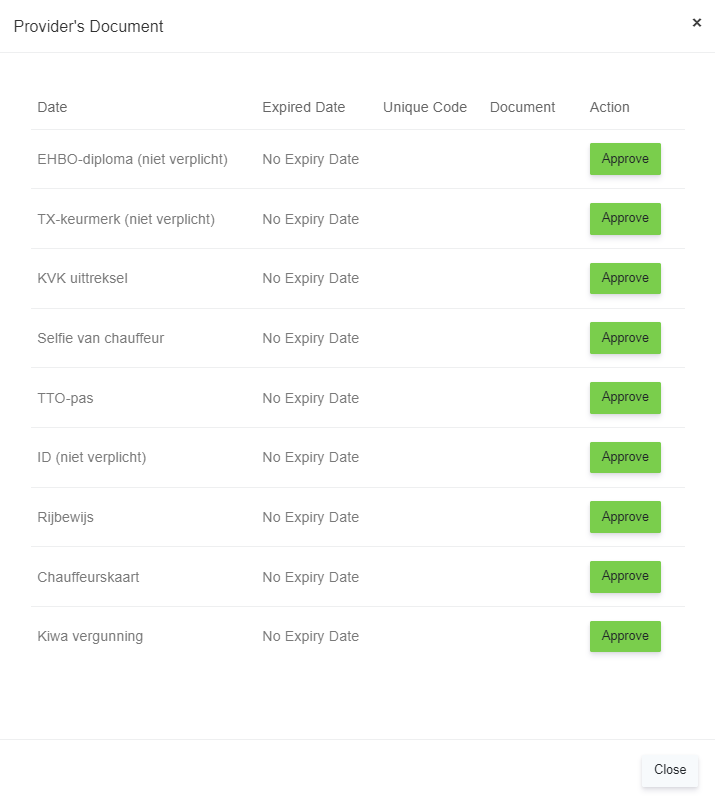
6.Document- Check and verify the documents and also Approve or Reject it.
- There is an Export Tab in the top right corner to export all the data easily.